
If your computer takes longer to open a spreadsheet than it takes you to refill your coffee, something is off. Most slow PCs are not broken. They are usually overloaded, cluttered, or running with habits that worked fine a few years ago and do not work so well now.
The good news is that you usually do not need to replace the whole machine. A few smart changes can make a very real difference, especially if you use your computer for work, meetings, email, reports, bookkeeping, sales calls, or the daily circus of browser tabs. If you have been wondering how to increase your PC performance, this is where to start.
This guide keeps things practical. You will not need mystery software, sketchy cleanup tools, or settings that look like they belong in a server room. You just need a little time, a little patience, and the willingness to stop letting your laptop run like a garage nobody has cleaned since the first iPhone had a home button.
Most computers do not slow down overnight. It happens gradually, which is why people often live with it longer than they should. One extra startup app, one too many browser extensions, a crowded drive, skipped updates, and suddenly your PC is moving like it has three managers and no decision maker. A lot of people assume slow performance means old hardware. Sometimes that is true, but not always. In many cases, the machine still has plenty of life left in it, but it is buried under too much digital clutter. That is what makes this fixable. Once you understand what is weighing the system down, it becomes easier to make the right changes instead of throwing money at the problem. Learning how to increase your PC performance is often less about buying new parts and more about removing what is getting in the way. This sounds basic, and that is exactly why people ignore it. A proper restart clears temporary memory issues, shuts down hung background tasks, and gives Windows a fresh start, which is why Microsoft still includes restarting among the first ways to improve PC performance.[1] Many people rely on sleep mode for days at a time. That is convenient, but it also lets little problems pile up in the background. A quick restart can clear some of that mess and make the machine feel sharper almost immediately. If your PC feels better after a restart, pay attention to that. It usually means the slowdown is tied to software load, memory use, or too many background processes. That is better news than a hardware failure, because it means you can do something about it today. One of the most common reasons a PC feels slow is that too many things launch the second you sign in. Some apps deserve that spot. Many do not, and they just sit there in the background nibbling away at memory and processor power while pretending to be important. Open Task Manager and look at your startup apps. If you see music apps, chat tools, game launchers, printer helpers, update assistants, or random extras you barely use, that is a great place to start cutting. Your computer does not need ten passengers climbing in before it even leaves the driveway. This is one of the easiest answers to how to increase your PC performance because it improves two things at once. Your computer starts faster, and it has fewer background tasks running all day. That means more room for the things you actually need, like work software, browser tabs, and video calls that somehow always begin when your machine decides to have a personality. A nearly full drive can drag down everyday performance. Windows needs room to breathe, and so do the apps you use every day. Microsoft notes that storage space matters for how well Windows runs, and its performance tips include making room and optimizing storage as part of the fix.[1] Go into your storage settings and review what is taking up space. Old downloads, duplicate files, giant videos, installers, and half forgotten project folders can stack up faster than people think. A laptop used for business can collect digital junk the same way a desk collects old receipts, chargers, and pens that do not work. You do not need a dramatic cleanup ritual. You just need enough open space so the system is not squeezed all day long. If you want to increase your PC performance, free storage space is one of the quickest wins you can get without spending a cent. People delay updates because they never show up at a convenient time. Fair enough. Still, updates matter because they fix bugs, improve stability, and help Windows work better with modern software and hardware, which is why they are part of Microsoft’s own performance guidance.[1] If your machine has been acting odd, sluggish, or unstable, check for pending updates and install what is ready. Then restart the PC and see how it behaves. It is not glamorous, but neither is explaining to a client that your laptop froze while you were trying to share the quarterly numbers. Old software tends to create friction everywhere. Apps can behave worse, drivers can fall out of step, and little annoyances start stacking up. Keeping Windows current is one of those habits that is boring in the moment and helpful all week.
Why PCs Get Slow Over Time
1. Restart Your PC More Often Than You Think
2. Trim the Startup Apps That Keep Crashing the Party
3. Clean Out Storage Before Your Drive Starts Begging for Air
4. Update Windows Instead of Clicking “Remind Me Later” for Six Months
Not every slowdown comes from too many tabs or too many files. Sometimes unwanted software is running in the background and chewing through resources. Microsoft’s performance guidance includes checking for viruses and malware for exactly that reason.[1] Use Windows Security and run a scan. It does not take much effort, and it can rule out one of the uglier reasons a computer starts acting strange. This is not about panic. It is about making sure the machine is not fighting an invisible problem while you are busy blaming the browser or the age of the laptop. If the system is still dragging after a clean scan, at least you have ruled out one important cause. That gives you a better path forward. Guessing is expensive, but checking is cheap. For a lot of people, the browser is the real workload. That is where the email lives, the documents live, the meetings live, the research lives, and apparently every tab from the last three weeks lives too. If your browser is overloaded, your computer will feel overloaded right along with it. Chrome includes a Memory Saver setting in its Performance section that reduces memory used by inactive tabs.[2] That matters because browser memory use is one of the biggest everyday performance drains on modern work PCs. This is where a lot of business users accidentally create their own performance problem. They blame the laptop, but the laptop is just trying to survive twenty seven tabs, four web apps, two dashboards, and a streaming playlist from lunch. At some point your browser stops being a tool and starts being a storage unit. A slow PC often has too much going on behind the curtain. Cloud sync tools, messaging apps, update services, backup software, and background helpers can quietly stack up and eat memory all day. You may never notice them individually, but your computer definitely does. Open Task Manager and look at what is using the most memory and processor power. Do not start ending random system tasks just because the names look unfamiliar. Instead, use it as a way to spot patterns and identify apps that are clearly asking for more than they are giving. This is especially useful if your computer becomes slow at specific times. Maybe it drags during video calls, maybe it slows when cloud sync starts, or maybe it falls apart when one giant spreadsheet opens. That tells you where the pressure is coming from, and that is the first step to fixing it. Laptops often try to balance battery life with performance. That is fine when you are answering email on the couch. It is less helpful when you are running reports, jumping between meetings, and trying to keep six work apps open without the fan sounding like a small aircraft. Check your power settings and see whether your system is leaning too hard toward battery saving. A power saving setup can make a machine feel more restrained, while a stronger performance setting can help responsiveness during heavier tasks.[1] This is one of those settings people rarely think about until they notice the difference. If your laptop feels okay plugged in and sluggish on battery, that is a clue. It is not always the whole story, but it is worth a look. Windows already includes tools for managing and optimizing storage. Microsoft specifically recommends using the built in optimize drives tool as part of improving PC performance, which makes sense because different storage setups need different handling.[1] If you search for drive optimization in Windows, you can review your drives and run the built in maintenance tools where appropriate. That is usually all regular users need. The shiny app that claims it will “turbo boost” your PC in one click is usually more sales pitch than solution. Be careful with tools that promise huge gains from registry cleaning, dramatic memory cleaning, or aggressive background tweaking. A lot of them do very little, and some create new problems. Your computer needs solid maintenance, not a late night infomercial. There comes a point where cleanup helps, but only so much. If your PC is still crawling after you have done the basics, the bottleneck may be hardware. That is especially common with older systems that still use a traditional hard drive instead of an SSD. Microsoft explains that SSDs are faster than HDDs, and that difference shows up in real life where startup times, app launches, and everyday responsiveness usually feel much quicker on an SSD based machine.[3] If your computer still runs on a hard drive, switching to an SSD can be one of the biggest upgrades you can make. Memory matters too. If your normal workload includes large spreadsheets, accounting software, browser heavy work, video meetings, and cloud tools all at once, low RAM can make the whole system choke. Not every older PC needs a full retirement party, but some of them do need better shoes.
5. Run a Security Scan, Because Slow Can Mean More Than Clutter
6. Get Your Browser Under Control
7. Check What Is Running in the Background
8. Adjust Power Settings When You Need More Speed
9. Use the Built In Drive Tools, Not Miracle Cleanup Software
10. Know When It Is Time for Better Hardware
If you only have a short block of time, focus on the changes most likely to make a real difference right away. These are the things that usually move the needle fastest for everyday users. They are not flashy, but they are effective. That short list will solve a surprising number of slowdowns. It will not fix every aging computer on earth, but it will give you a cleaner picture of whether the problem is software clutter, browser overload, or hardware that is simply behind the times. The mistake a lot of people make is treating performance like a one time project. They clean everything once, the machine feels better, and then the old habits creep back in. Two months later the same startup junk, storage clutter, and browser chaos have returned like a sequel nobody asked for. The better move is to keep a small routine. Restart the machine every so often, review startup apps once in a while, install updates, and do a light cleanup of files and tabs before things get out of hand. That takes less time than a giant rescue mission later. If you run a small business, this matters even more. A slow PC costs time, breaks focus, delays work, and makes simple tasks feel heavier than they should. People notice when meetings start late because the laptop cannot wake up without a pep talk. This is why learning how to increase your PC performance is not just a tech issue. It is a workflow issue. A smoother machine keeps the day moving, and that matters whether you are sending invoices, closing deals, answering customers, or trying to survive another spreadsheet Friday. One mistake is installing random cleanup programs because the ad made it sound easy. Another is disabling things without understanding what they do. Both can leave you with a system that feels unstable, confusing, or no faster than before. Another mistake is assuming every slowdown means you need a new computer. Sometimes you do. Sometimes you just have a machine drowning in startup clutter, low storage, old updates, and a browser with the appetite of a teenage athlete. People also forget to look at how they actually use the PC. If your day lives in the browser, browser habits matter. If you work with large files, storage and RAM matter. If your laptop gets slow only away from the charger, power settings matter. The fix should match the problem. That sounds obvious, but it is where people go wrong. The goal is not to try every trick on the internet. The goal is to find the few changes that actually fit the way you work. Most people do not need a dramatic overhaul to get better speed. They need a cleaner startup, fewer background drains, more free space, current updates, and a browser that is not trying to host the entire internet. That combination solves more than most people expect. If you have been trying to increase your PC performance, start with the free fixes first. They cost nothing, they are practical, and they often reveal whether the problem is simple clutter or something deeper. That gives you a clearer path before you spend money on upgrades. And if the basics help but not enough, that does not mean you failed. It just means the computer may have reached the point where better hardware makes sense. There is no shame in that. Even the most loyal business laptop eventually starts acting like it wants an early pension. At the end of the day, how to increase your PC performance comes down to reducing friction. Less clutter, fewer unnecessary passengers, smarter settings, healthier storage, and hardware that matches the job. Your computer does not need to be brand new, but it should not feel like it is clocking in with a bad back every morning. The fastest starting point is to restart the computer, disable unnecessary startup apps, and install pending Windows updates. Those three steps are quick, safe, and often make a noticeable difference. They also help you figure out whether the slowdown is temporary clutter or a bigger hardware issue. Yes, especially if those tabs include web apps, video, dashboards, or extensions running in the background. Browsers can use a lot of memory, and that affects how smooth the whole PC feels. If your workday lives in the browser, tab habits matter more than most people think. For many older PCs, yes. An SSD usually improves startup time, app loading, and overall responsiveness in a way that feels obvious in daily use. It is one of the upgrades people tend to notice right away. A light cleanup every week or two is enough for most people. Clear obvious junk, review startup apps, restart the machine, and check for updates. Small regular cleanup beats waiting until the computer feels like it is filing taxes with a fax machine. If your PC slows down during multitasking and Task Manager shows memory usage staying high, more RAM may help. This is common with heavy browser use, large spreadsheets, meetings, and business software all running together. If memory is not under pressure, more RAM may not change much.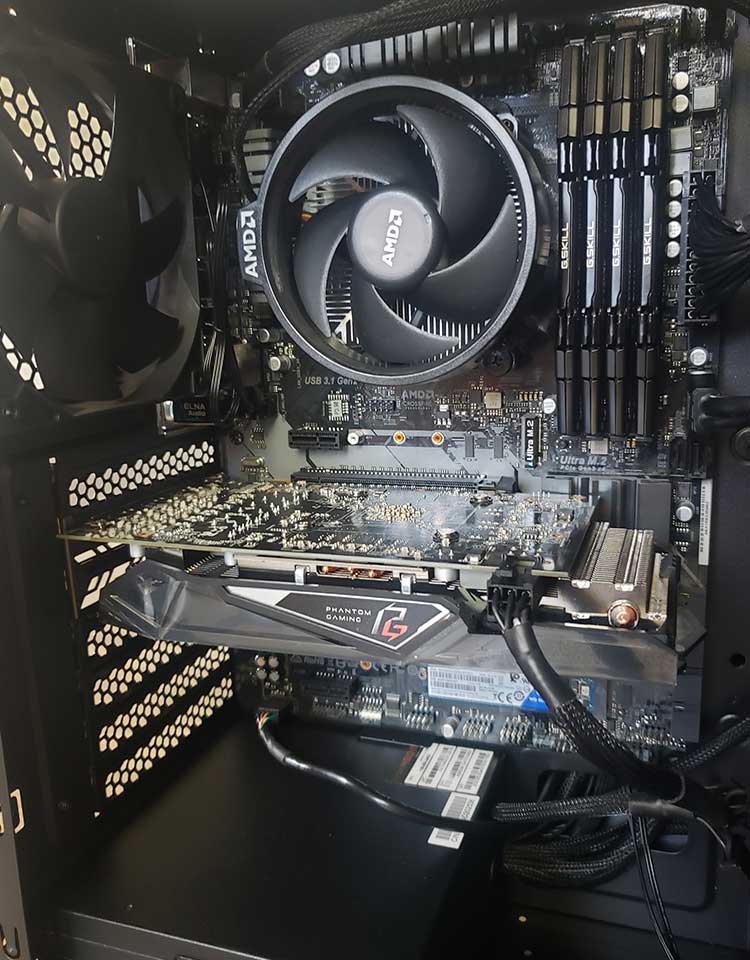
The Quickest Wins If You Want Results Today
How To Keep Your PC Running Well After the Cleanup
Common Mistakes People Make When Trying to Speed Things Up
Final Thoughts
Frequently Asked Questions
What is the fastest way to speed up a slow PC?
Do too many browser tabs really slow down a computer?
Is it worth upgrading from an HDD to an SSD?
How often should I clean up my PC?
How do I know if I need more RAM?